The Platform You Already Have
Most small law firms are already running on Microsoft Outlook and Microsoft 365. That means when a case involves email evidence, the data is usually right there, sitting in a platform your paralegal uses every day.
The problem isn't access. The problem is that almost no one on the legal side knows how to extract, preserve, and produce that evidence correctly.
This guide covers what your firm needs to know about Outlook email evidence: where the data lives, how to pull it without corrupting it, what metadata to preserve, and how to get it into a format that will hold up.
What Outlook Stores (And Where)
Before you can collect email evidence, you need to understand what Outlook is actually storing and where it lives.
Microsoft 365 (Cloud)
If your client or your firm uses Microsoft 365, email lives in Exchange Online, a cloud-hosted service. The end user sees it through Outlook, but the authoritative copy is on Microsoft's servers.
This matters for a few reasons:
- Deleted items don't disappear immediately. Exchange Online retains deleted messages in a recoverable state for 14 days by default, and administrators can extend that to 30 days. After that, items move to a "purges" folder that is invisible to users but accessible to admins.
- Litigation holds override deletion. If you place a mailbox on litigation hold through the Microsoft 365 compliance center, emails are preserved indefinitely, even if the user deletes them.
- Multiple copies may exist. Sent items, received copies, and calendar invitations all create separate records.
Outlook Desktop (Local Files)
Some firms still use local Exchange servers, or their staff uses Outlook in a mode that caches mail locally. In that case, the data lives in PST files (Personal Storage Table) or OST files (Offline Storage Table).
PST files are portable archives. OST files are local sync caches that should not be used as the authoritative copy for production, since they may be incomplete.
If a client's company uses on-premises Exchange, the IT administrator can pull mailbox data from the server. If the user was using Outlook with local storage only, a forensic copy of the PST file may be necessary.
How to Export Email from Outlook
For most small firm matters, you have two practical options: export from the Microsoft 365 compliance center, or export directly from the Outlook desktop application.
Option 1: Microsoft 365 Compliance Center (Recommended)
If your client has Microsoft 365, this is the right approach. The compliance center lets you run a Content Search that pulls email across multiple mailboxes, apply date and keyword filters, and export results in a format that preserves metadata.
Here's the basic process:
- Log into the Microsoft 365 compliance center (compliance.microsoft.com) as a global admin or eDiscovery manager.
- Navigate to Content search or eDiscovery cases.
- Define your search: select mailboxes, set date ranges, enter keywords.
- Preview results to confirm scope.
- Export. You'll get a PST file or individual message files, along with an export manifest.
The export includes message headers, which is where your metadata lives. Do not skip the manifest. It documents what was exported, from where, and when.
One practical note: the export process can take hours for large mailboxes. Build that time into your timeline.
Option 2: Outlook Desktop Export
If you only need a narrow set of emails and you're working directly with your client's Outlook, you can export to a PST file from the desktop application:
- In Outlook, go to File > Open & Export > Import/Export.
- Select Export to a file, then Outlook Data File (.pst).
- Choose the mailbox or folder to export.
- Save the PST file.
This is faster and simpler, but it has limits. It won't capture deleted items the user has emptied, and the metadata preservation depends on the Outlook version and export settings. For anything that might become contested, the compliance center export is cleaner.
What Not to Do
Do not screenshot emails. Do not copy and paste content into a Word document. Do not forward emails to yourself as a preservation method.
All of these destroy metadata. A screenshot of an email is a photograph of text. It tells you nothing about when the email was actually sent, who actually sent it, or what server it passed through. Courts are increasingly skeptical of screenshot exhibits, and opposing counsel will challenge them.
The actual email file is the evidence. Get the file.
Preserving Email Metadata
Metadata is what separates authenticated email evidence from a printout that someone could have typed themselves.
When you produce email evidence from Outlook or Microsoft 365, you need to preserve:
- Message-ID: A unique identifier assigned by the sending mail server.
- Sent and received timestamps: Including time zone information.
- From, To, CC, BCC fields: Note that BCC recipients are not visible in the body of the email, but may appear in message headers or server logs.
- SMTP routing headers: The X-Originating-IP and Received headers show the path the message took and can establish sender location and timing.
- Read receipts and delivery confirmations: If present, these establish when a message was opened.
A properly exported PST file preserves all of this. A PDF printout does not.
If you're producing to opposing counsel, they will want the native format or a TIFF/PDF with an extracted metadata load file. The load file is the structured data that lets their review platform ingest the metadata alongside the document. If you don't know what a load file is, your IT vendor or a legal technology consultant can help you produce one from the export.
Litigation Holds in Microsoft 365
If you're representing a client who is a party to litigation, the first thing to do is make sure their email is preserved. The second thing is to document that you did it.
In Microsoft 365, the mechanism for this is called an In-Place Hold or Litigation Hold. When you place a mailbox on litigation hold:
- All items are preserved, including deleted messages and edits.
- Users can't permanently delete anything, even if they try.
- The preservation is invisible to the user (they can still delete from their inbox, but the items are retained in a hidden recoverable items folder).
To enable a litigation hold, an administrator goes to the Exchange Admin Center, opens the mailbox properties, and toggles on the litigation hold. Alternatively, you can do it from the Microsoft 365 compliance center under eDiscovery cases.
Document when the hold was placed, who placed it, and which mailboxes are covered. That documentation is your evidence that you took the right steps at the right time.
If your client is small enough that they don't have an internal IT administrator, someone needs to handle this for them. That is not a step you can skip.
Common Problems with Outlook Email Evidence
Time Zone Confusion
Outlook stores timestamps in UTC by default and converts them to the user's local time zone for display. When you export email and produce it, the timestamps in the export may differ from what the user sees on their screen. This causes more confusion than it should.
Always note the time zone context when discussing timestamps in briefs or depositions. If you're relying on a specific send time, confirm whether it's local or UTC before you put it in a filing.
Threaded Conversations
Outlook's conversation view groups related messages together, which is convenient for reading but problematic for evidence. The thread view can hide individual messages and make it appear that fewer emails exist than actually do.
When collecting evidence, collect individual messages, not conversation views. Every message in a thread should be a separate record.
Attachments
Attachments to emails are part of the evidence record. A contract attached to an email has its own metadata, including creation and modification dates. Collect and produce attachments with their parent emails, and document the parent-child relationship in your production.
If an attachment was modified after it was sent, the modification timestamp can be significant. Forensic analysis of the attachment may be warranted in contested matters.
The Sent Items Problem
Some email clients and configurations don't save sent items. If your client says they sent an email but can't find it in their sent folder, it may have been lost due to a misconfiguration, or it may never have been sent. Server logs from Microsoft 365 can often resolve this, since every sent message is logged on the server side even if the client copy is gone.
Producing Outlook Email to Opposing Counsel
When it's time to produce, get specific about format requirements. The default in most federal courts under FRCP 34 is production in the same form in which the documents are ordinarily maintained, or in a reasonably usable form.
For email from Microsoft 365, that typically means:
- Native format (MSG or EML files): Preserves all metadata. Opposing counsel can open them in Outlook or a review platform.
- PST format: A single archive containing multiple messages. Standard and widely accepted.
- PDF with load file: If the parties agree to a PDF production, the load file carries the metadata separately. Common in larger matters where a document review platform is involved.
Never produce printouts as your primary production format if native files are available. You will get pushback, and you should.
If you're in state court, check the local rules. Many state courts are catching up to federal standards on ESI production, but requirements vary.
What Small Firms Get Wrong
A few patterns show up repeatedly in matters where email evidence becomes a problem:
Starting preservation too late. The duty to preserve attaches when litigation is reasonably anticipated, not when a complaint is filed. By the time the lawsuit is served, your client may have already deleted relevant emails through normal operations. Get the litigation hold in place early.
Relying on the user to collect. Asking your client to forward you the relevant emails is not a collection process. It's a selection process, and it means your client decided what's relevant. Collect from the source.
Forgetting shared mailboxes and distribution lists. If your client's business uses shared mailboxes (like info@company.com or legal@company.com), those need to be preserved too. They often get overlooked because no single person owns them.
Not verifying what was collected. Export a mailbox, then verify the export. Spot-check a few messages to confirm they're complete and that the metadata is intact. An export that failed halfway through is worse than knowing you have a problem.
Make the Email Record Work for You
Outlook and Microsoft 365 are capable platforms with solid evidence preservation tools built in. The problem is that those tools require someone to actually use them, at the right time, in the right way.
Small firms that develop a consistent approach to Outlook email evidence, before a matter heats up, are in a much better position when discovery starts. The firms that scramble after the fact spend more time, more money, and still end up with a weaker production.
The email record is usually the most complete account of what happened. Handle it like it matters, because in most litigation, it does.
ThreadLine helps attorneys and their clients organize the email record into a clear, chronological timeline, so you can see exactly what was said, when, and by whom. When discovery starts, you're ready. See how it works at threadline.app.
FAQ
How do you save Outlook emails for legal purposes?
For serious matters, preserve the mailbox source, use Microsoft 365 compliance exports when available, keep attachments connected, and avoid relying only on screenshots or forwarded copies.
Do Outlook PST exports preserve metadata?
PST exports can preserve useful message data, but collection settings, folder selection, time zones, and attachment handling still need to be documented.
Can Outlook emails be turned into a court timeline?
Yes. Outlook and Microsoft 365 emails can be organized into a chronology that shows dates, participants, subjects, attachments, and the sequence of events.
Related reading
- Email metadata in litigation
- Court-ready email exhibits
- Email chronology for court
- Organize emails for a custody case
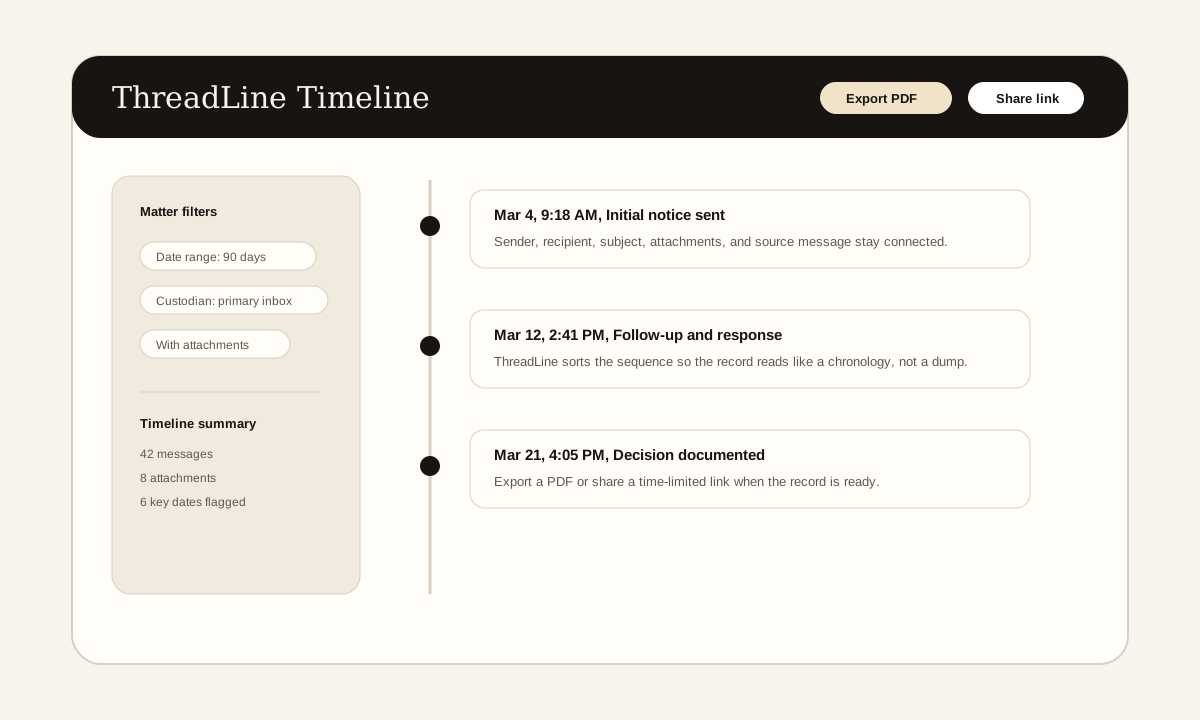
The screenshot above is a product example of the timeline view these articles describe: messages in order, source context preserved, and export or sharing controls available when the record is ready.
Ready to build your court-ready email record?
ThreadLine turns a pile of email threads into a clean, chronological timeline in minutes. It is formatted for court, ready to share or export as PDF. Your first timeline is free.
Working an active case? A $49 Case Pass covers 90 days with no subscription.
Need to organize the record first? Get the free dispute documentation checklist.
← Back to all posts