You have the emails. You know they tell the story. But when you go to introduce them at trial or a hearing, opposing counsel objects. The judge asks about authentication. You scramble.
This is not a hypothetical. It happens in small firm litigation all the time, and the fix is straightforward: build your court-ready email exhibit correctly from the start.
Here's exactly what that looks like.
Why "I Printed the Emails" Isn't Enough
Attorneys print emails and call it done. That approach creates problems.
A printed email is just paper with text on it. Without proper authentication and supporting metadata, opposing counsel can challenge whether the email was altered, whether it was complete, or even whether the sender actually sent it. Courts have excluded email evidence for exactly these reasons.
A court-ready email exhibit is not just a printout. It's a documented artifact with a clear chain of custody, verifiable metadata, and a production format that meets court standards.
Getting there takes a few extra steps. Those steps are worth it.
What Courts Look For
Before formatting anything, understand what you're trying to satisfy. Courts evaluating email evidence typically ask:
- Is this what it claims to be? Authentication under FRE 901 requires showing the email is what you say it is. Sender address, timestamps, headers, and reply chains all contribute.
- Is this complete? A cherry-picked excerpt invites challenge. Courts want the full thread, not the convenient slice.
- Where did this come from? If the email came from a client's inbox, how was it extracted? Was it preserved without alteration?
- Is this the best evidence? The best evidence rule (FRE 1002) prefers the original or a reliable duplicate. A screenshot on a phone does not qualify as a reliable duplicate.
Your exhibit needs to answer all four questions before opposing counsel asks them.
The Components of a Court-Ready Email Exhibit
1. Full Email Headers
The visible portion of an email (From, To, Subject, Date) is the minimum. Headers tell you much more: the routing path, originating IP, mail server timestamps, and message ID.
In litigation, headers matter because:
- They can confirm when an email was actually sent, independent of what the sender claims.
- They can reveal if an email was forwarded, modified, or generated by a different system than the apparent sender.
- They establish technical authenticity that a simple printout cannot.
For trial exhibits, you don't always need to print the full raw headers. But you should have them in your file and be ready to produce them if authenticity is challenged. Many attorneys include a one-page header summary as a companion exhibit.
2. Native Format Preservation
Whenever possible, preserve the email in its native format before creating an exhibit. For Microsoft 365 and Outlook, that means .msg or .eml files. For Gmail, .eml or Google Takeout exports.
Native files preserve:
- Full headers
- Attachments in their original form
- Metadata timestamps that reflect when the email was received and modified (if at all)
- Message ID, which is globally unique and can be used to verify the email's integrity
Once you have the native file, you can export a clean, formatted version for the exhibit itself. The native file stays in your evidence file as your backup.
3. Chronological Thread Presentation
Email threads are messy by default. Replies nest, Cc fields grow, forwards scatter the conversation across five different windows.
A court-ready email exhibit presents the thread in clean chronological order, from the earliest message to the most recent. Each message should clearly show:
- Date and time (with timezone)
- Sender
- All recipients (To, Cc, Bcc where available)
- Subject line
- Body text
- Any attachments (listed by name, with separate exhibit numbers if they are being introduced)
This structure lets the judge, jury, or arbitrator follow the conversation without hunting through pages of nested replies.
4. Exhibit Numbering and Labeling
Every exhibit needs a clear label. Standard practice is a sticker or stamp in the bottom corner: Plaintiff's Exhibit 12, Defense Exhibit B, etc. The format varies by jurisdiction, so check your local rules.
For multi-page email threads, number the pages sequentially and identify the exhibit on each page. A 12-page email thread labeled only on the cover sheet is a recipe for confusion during witness examination.
If you're producing electronically (increasingly common), your PDF should be bookmarked by exhibit number and your file naming convention should match.
5. Authentication Declaration or Stipulation
Some courts require a declaration from the person who collected the emails, attesting that the emails are authentic, complete, and were preserved without alteration. Others rely on testimony. Many matters settle on a stipulation from both parties.
Know what your jurisdiction expects. If you're in federal court, review FRE 901 and consider whether you need a custodian of records declaration from the email provider (Google, Microsoft) or from the client.
For state court, local rules vary significantly. The safest path is a short authentication declaration prepared in advance, even if you end up not needing it.
Common Formatting Mistakes
Cutting the Thread
If you introduce Reply #4 without the first three messages, opposing counsel will argue you're hiding something. Even if you're not, the inference is damaging. Include the full thread.
Including Only the To/From Line
Omitting Cc recipients creates gaps. In employment cases especially, who was copied on a communication is often as important as what was said. Show the full recipient list.
Screenshot Evidence
Screenshots are problematic for two reasons: they're easy to fabricate, and they don't preserve metadata. A screenshot of an email on someone's phone is a last resort, not a production standard. If that's all you have, be prepared for an authentication battle.
Inconsistent Timestamps
If your exhibit shows timestamps in three different time zones with no explanation, it will confuse everyone in the room. Standardize to one timezone (usually local court time or the timezone where the events occurred) and note the conversion.
Attachments Without Exhibit Numbers
An email that says "See attached" without the attachment introduced separately is half an exhibit. If the attachment matters, give it its own number and make sure it's authenticated too.
The Production Format Question
Different courts have different standards for electronic production. Some want PDF/A (archival PDF). Others specify TIFF with load files. Many smaller state courts are still paper-first.
The basics that work almost everywhere:
- PDF, not Word. Word documents can be edited; PDFs (especially PDF/A) are harder to alter and are more universally accepted.
- Searchable text. If your PDF is just a scan, run OCR. Searchable text is more useful to judges and opposing counsel and signals professionalism.
- Consistent margins. Leave room for exhibit stickers and Bates numbers. A standard half-inch margin on all sides is a safe default.
- Page numbers. Always. No exceptions.
If you're in federal court or a larger state court with electronic filing, check the standing order for your judge. Some have specific requirements on PDF version, file size limits, and bookmark structure.
What Happens When You Get This Right
A well-constructed email exhibit does three things for you.
First, it deflects authentication challenges before they happen. When your exhibit has full headers, a native file backup, and a proper declaration, opposing counsel has nothing to grab onto.
Second, it tells a clearer story. Chronological order, complete threads, and consistent formatting make it easier for a fact-finder to follow the narrative. Jurors and judges are human. Clean presentation helps.
Third, it signals competence. This sounds minor, but it isn't. A sloppily produced exhibit communicates that you weren't careful. A professional exhibit communicates that you know what you're doing. That impression carries through the whole proceeding.
Building This Without an Enterprise eDiscovery Budget
Large firms use enterprise tools to automate exhibit creation, metadata extraction, and production formatting. You probably don't have Relativity. That's fine.
The manual workflow is:
- Collect native email files (.msg or .eml) from the client's mailbox.
- Export to PDF using your email client or a free tool like MailStore Home.
- Arrange in chronological order.
- Add exhibit labels and page numbers.
- Keep native files in a separate evidence folder.
- Prepare a short authentication declaration.
It takes more time than clicking a button in enterprise software. But it's entirely doable, and the output is court-ready.
If you're handling a matter with significant email volume, a tool that turns raw email threads into clean chronological records can compress the time significantly. ThreadLine is built for exactly this: it takes messy email threads and produces clean, chronological timelines ready for review and production. It's worth a look before you spend a weekend manually reformatting 400 emails.
The Short Version
A court-ready email exhibit needs: full headers available, native files preserved, chronological thread presentation, proper exhibit labeling, and authentication documentation ready to go. Screenshots and partial threads create problems. Clean, complete, chronological records do not.
Get the format right before you're standing in front of a judge explaining why your exhibit looks like it was assembled in a hurry. It's a small amount of work upfront. It pays off when it matters.
FAQ
What should a court-ready email exhibit include?
A court-ready email exhibit should include the complete message, sender and recipient details, timestamps, attachments, source information, and a clear chronological order that can be authenticated.
Is printing emails enough for court?
Printing emails may be enough for informal review, but litigation often requires preserved metadata, complete threads, and a defensible explanation of where the messages came from.
How should attachments be handled in an email exhibit?
Attachments should stay linked to the message that transmitted them, with filenames, dates, and source context preserved so the exhibit does not separate the document from the communication that proves it.
Related reading
- Email chronology for court
- Email chain of custody
- Admissibility of email evidence
- Organize emails for a custody case
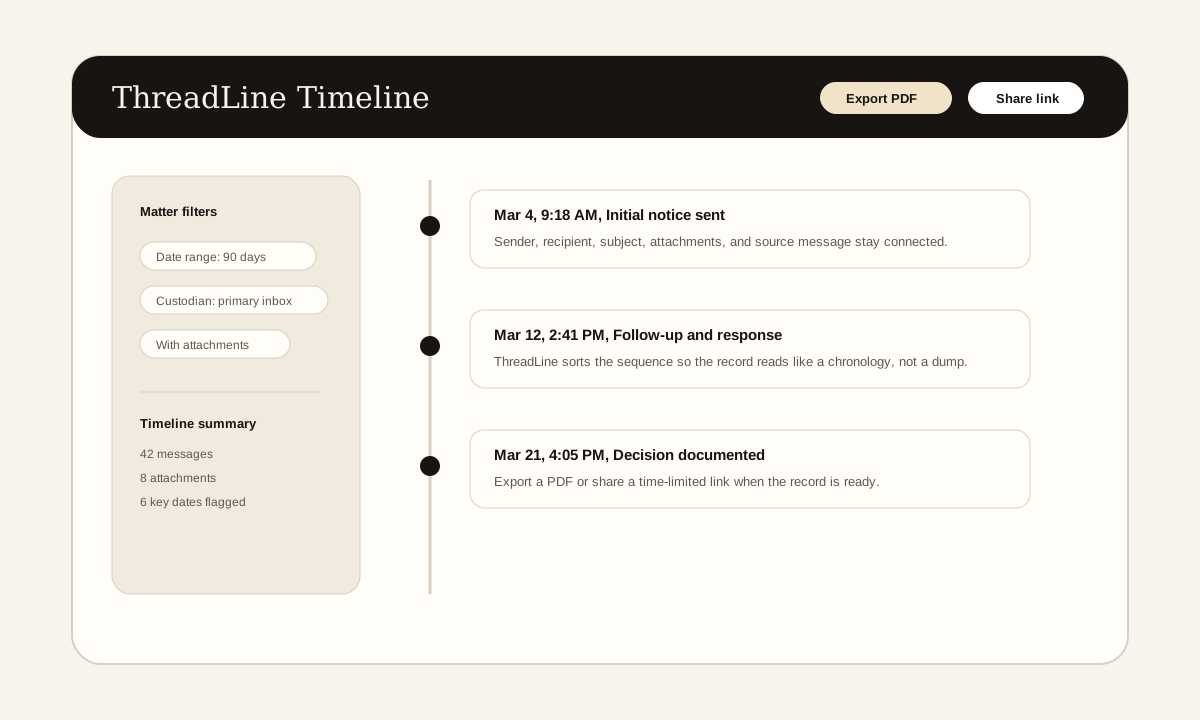
The screenshot above is a product example of the timeline view these articles describe: messages in order, source context preserved, and export or sharing controls available when the record is ready.
Ready to build your court-ready email record?
ThreadLine turns a pile of email threads into a clean, chronological timeline in minutes. It is formatted for court, ready to share or export as PDF. Your first timeline is free.
Working an active case? A $49 Case Pass covers 90 days with no subscription.
Need to organize the record first? Get the free dispute documentation checklist.
← Back to all posts